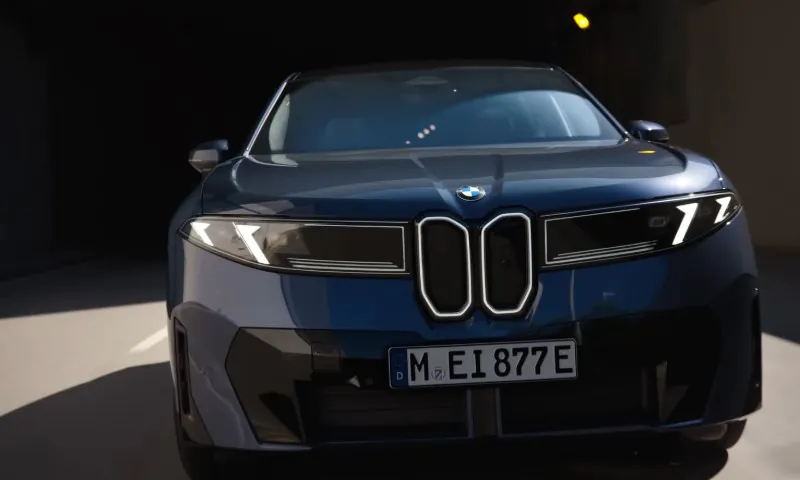

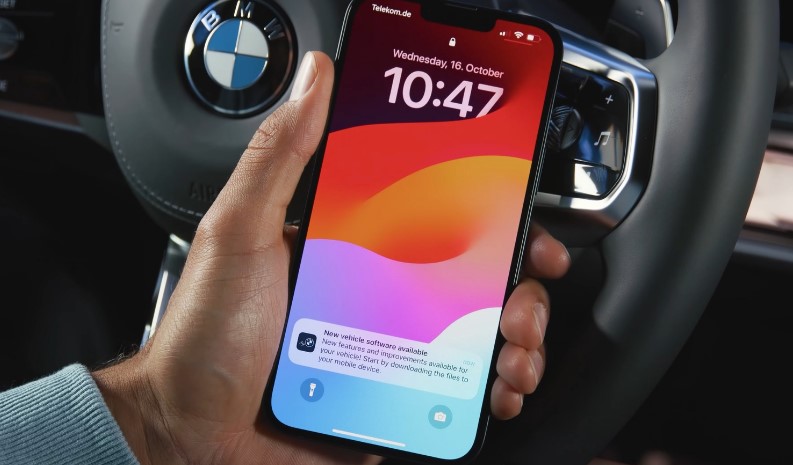
If you own a BMW, odds are you’ve heard about software updates, but maybe you’re not quite sure what they actually do or how to get them installed. Maybe you’ve seen a message pop up on your iDrive screen or a notification in the My BMW app that says a new software version is available.
Should you care? Yes. Should you do anything? Definitely. But don’t worry, you don’t need to be a tech wizard to keep your BMW up to speed.
Here’s a breakdown of how BMW software updates work, why they matter, and how to get them done, whether you’re using Over-The-Air (OTA) updates, a USB drive, or visiting the dealership.
Three Main Ways to Update BMW Software
Your options depend on how old your vehicle is and what hardware it’s running. Most updates fall into one of three categories:
- Over-The-Air (OTA) or Remote Software Upgrades – for newer BMWs (typically from 2019 onward)
- USB Updates – common for older systems, especially for map data and iDrive improvements
- Dealership Updates – used for full-system overhauls or older models that don’t support OTA or USB options
Let’s break them down.
Over-The-Air (OTA) Updates – The Easiest Option for New Models
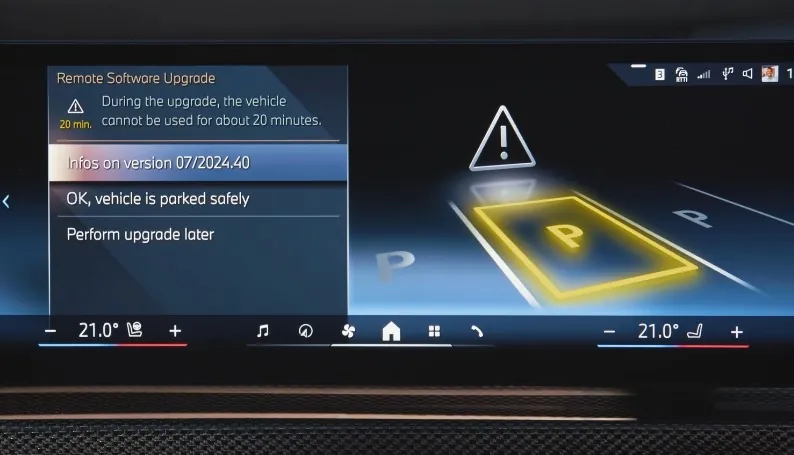
If your BMW has BMW Operating System 7 or newer, and a feature called Live Cockpit Profession, l—you’re probably eligible for OTA updates, also known as Remote Software Upgrades (RSU).
How It Works
Your car uses its built-in SIM card to connect to the internet and download software updates directly. No cords. No USB. You’ll get a notification on your iDrive screen or inside the My BMW app when an update is available.
You can:
- Download the update via the car’s mobile connection, or
- Pre-download it to your smartphone via the app and transfer it via Bluetooth or Wi-Fi once you’re in the car
Compatible Models (selected examples)
- BMW 1 Series (F40 and up)
- 3 Series (G20/G21)
- 5 Series (G30 LCI)
- 7 Series, 8 Series
- X5, X6, X7
- iX3, i4, iX, i7
- Z4 (G29)
- Most newer M models
If your car came with Operating System 7 or higher, you’re likely good to go.
Step-by-Step: OTA Update
- Check Availability: Go to My Vehicle > Settings > General Settings > Remote Software Upgrade.
If it’s there, your car supports OTA. - Start the Process: If an update is available, you’ll see a prompt. You can also check via the My BMW app.
- Download: Update size is usually around 800 MB. If you’re using your phone, let the app download it in advance.
- Install: Follow on-screen prompts in your car. Installation usually takes about 20 minutes. You won’t be able to drive during that time.
- Verify: After installation, go to Settings > Software Update > Show current version to confirm the new version is active.
- Rollback Option (if needed): If something feels off, go to Settings > Software Update > Restore previous version and confirm twice. It’ll revert to the last working software.
- No cables or special tools
- Integrated with My BMW app
- Convenient scheduling
Things to Keep in Mind
- You’ll need a solid internet connection via the car’s mobile network
- Updates often roll out in phases—so even if someone else has it, you might need to wait a few days
- Not all features are updated via OTA; some still require USB or dealership visits
USB Software Updates – Ideal for Older BMWs and Map Downloads
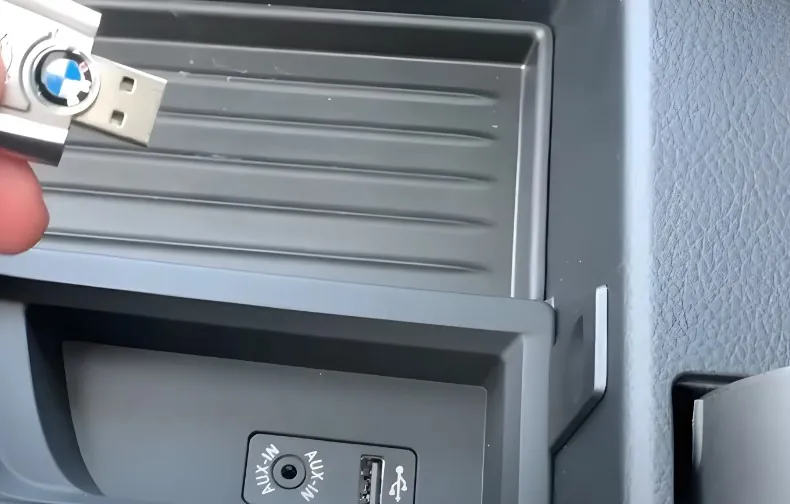
If your car doesn’t support OTA—or you want to update your navigation maps or Bluetooth firmware—you can do it manually with a USB stick.
What You’ll Need
- A USB drive, formatted to FAT32
- 8GB minimum for general updates
- 64GB recommended for map updates
- Your VIN number
- BMW’s official update portal or the BMW Update Manager for maps
- A laptop or desktop computer
Step-by-Step: iDrive Update via USB
1. Format the USB Drive
Use a tool like MiniTool Partition Wizard if your drive is larger than 32GB. Format to FAT32.
2. Download the Update
Go to BMW’s official software update site and enter your VIN. Download the BIN file (e.g., UPD05074.bin).
3. Copy to USB Root
Place the .bin file in the root directory of the USB drive—not inside any folders.
4. Plug Into Vehicle
Use any USB port in the cabin.
5. Go to Update Menu
On iDrive, go to My Vehicle > iDrive settings > Software update > Software update.
Select the USB option.
6. Install
Follow the on-screen instructions. Don’t remove the USB until prompted. The system may reboot.
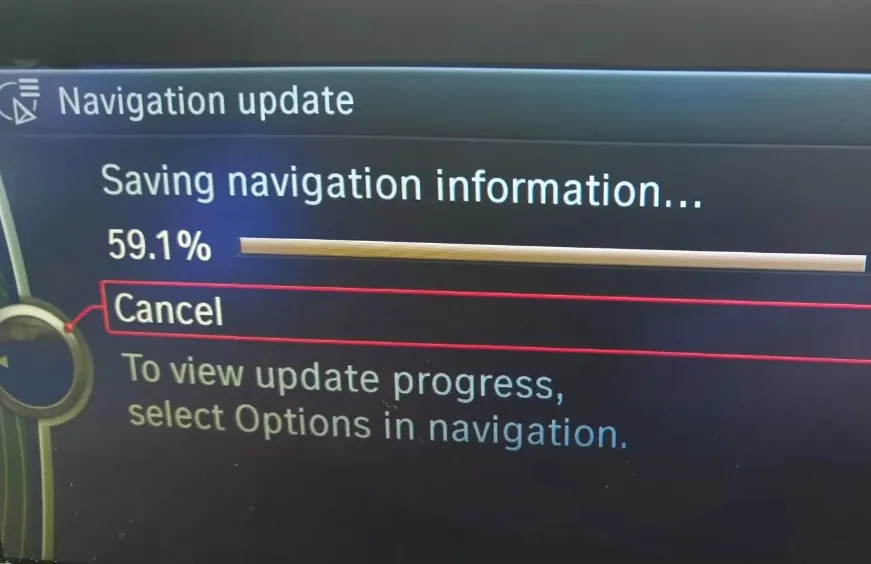
For Navigation/Maps
- Log Into My BMW Account: Go to “My Vehicles” > Map Update.
- Download the Map: Use the BMW Update Manager to download the file.
- Prepare the USB: 64GB USB, FAT32 formatted, copy the map files.
- Plug In and Install: The car will prompt you to begin the map installation.
Using Older Files for Legacy Systems (2011–2015)
Some BMWs from earlier in the 2010s use CIC or NBT systems, and the official BMW site may no longer host their updates. In that case, you can use the Wayback Machine to find old versions of the update page.
Example Files
| System | File Name | Size | Release Date | Use Case |
| CIC | UPD01008.bin | 8.27 MB | 01.10.2014 | Basic multimedia update |
| NBT | UPD05074.bin | 92.33 MB | 25.08.2016 | Bluetooth & media firmware |
If you're updating an NBT system, save the file to USB, then plug it in and go to Settings > Software Update > Update Software.
Note: These are not full OS updates—just improvements for Bluetooth, USB media playback, etc.
When a Dealership Visit Makes More Sense
Sometimes, you just need a professional. If your car doesn’t support OTA or USB updates, or if an update fails, the dealership is your best bet.
When to Go to the Dealer
- Your vehicle predates Operating System 7 and doesn't offer USB update menus
- You’ve retrofitted a new head unit and need special software loaded
- You’re getting repeated errors or the update just won’t install
- You want to update safety-critical modules like steering, brakes, or drivetrain
What Happens at the Dealership
Technicians use tools like ISTA/P or ISTA+ to connect directly to your car’s ECU. They can run diagnostics, flash updates, and make sure everything plays nicely with your existing hardware. It’s also the only way to get some of the more advanced feature upgrades.
How to Check Your Compatibility
@pitstop.tyres watch till the end for a v important tip!!! ??? #pitstoptyres #pitstoptyressingapore #cartipswithcordi #cartips #tyresize #tyres #faq #carsoftiktok #cartok #cny #chassis ♬ original sound - Cordi @ Pitstop Tyres
Before you start anything, it helps to know what your car supports.
Use Your VIN
Go to BMW’s update portal and enter your 17-digit VIN. That ensures you’re looking at files specifically for your car’s system.
Check iDrive Version
On your iDrive screen:
Settings > Software Update > Show Current Version
You’ll see a string like NBTEvo_P18225I. That tells you the system version and can help determine whether you should be using OTA or USB.
Common Errors and Fixes
| Error Message | What It Means | What to Do |
| "Software on USB device incompatible" | You may already have the latest version | Check version number in settings |
| VIN not recognized | Wrong VIN or retrofitted unit | Use a known working VIN like WBAKS420200J49157 |
| Update fails midway | Could be low battery or corrupt file | Charge battery, re-download update |
| No updates available | OTA updates roll out gradually | Try again after a few days |
BMW Software Updates Matter More Than You Think
BMW vehicles are no longer just about horsepower and leather interiors. They’re rolling computers—complete with advanced infotainment systems (iDrive), integrated navigation, smart device pairing, driver-assist features, and even security functions. All of this runs on software. And like your phone or laptop, it needs to be updated.
Here’s what a software update can do for your BMW:
- Improve iDrive performance — smoother menus, fewer glitches, quicker responses
- Refresh navigation maps — new roads, updated points of interest, more accurate routing
- Enhance phone compatibility — fix Bluetooth bugs, improve Android Auto or Apple CarPlay integration
- Boost system security — patch vulnerabilities and improve backend system stability
- Unlock new features — BMW occasionally adds functions post-purchase, especially in newer models
Bonus Tips
- Always format your USB to FAT32, not NTFS or exFAT (unless specified for large maps)
- Use a reliable brand USB drive—some cheap ones cause errors during update
- My BMW App is your friend—use it to manage updates, check compatibility, and get alerts
- If you’ve added a retrofitted head unit, updates may not work as expected—contact a professional installer
- Data privacy is solid—BMW encrypts all update traffic and only uses your VIN for identification
Wrapping Up
Keeping your BMW software up-to-date doesn’t have to be complicated or intimidating. If you’ve got a newer model, OTA updates make life easy. If your car’s a few years older, a formatted USB stick and a little patience can get the job done. And if you're stuck, the dealership is always there to help.
Think of software updates like oil changes for your tech. They keep everything running smoothly—your maps accurate, your apps responsive, and your car ready for what’s next. Check your iDrive version, grab your VIN, and give your BMW the digital refresh it deserves.
And hey, maybe even enjoy the new features while you're at it.